How to Install Windows Fax and Scan Feature in Windows 11 for OneNote?
In Windows 7, the "Windows Fax and Scan" feature can be installed in "Control Panel" -> "Turn on or off Windows Features" -> "Print and Document Services."
In Windows 11, you can also install it in System Settings. By default, the "Windows Fax and Scan" feature is not installed in the system and must be added manually.
Follow steps is how to install Windows Fax and Scan in Windows 11.
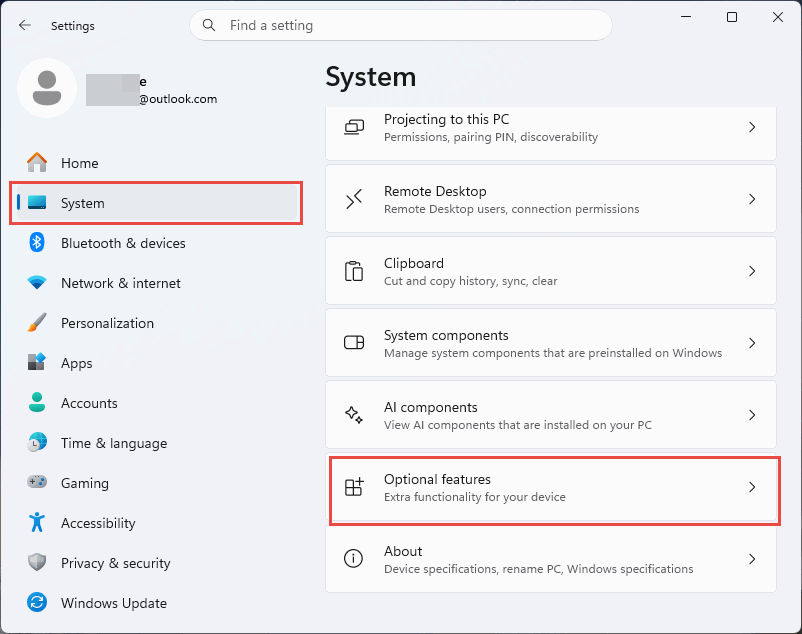
(1) System -> Optional Features
Run Windows 11 Settings, System -> Optional Features
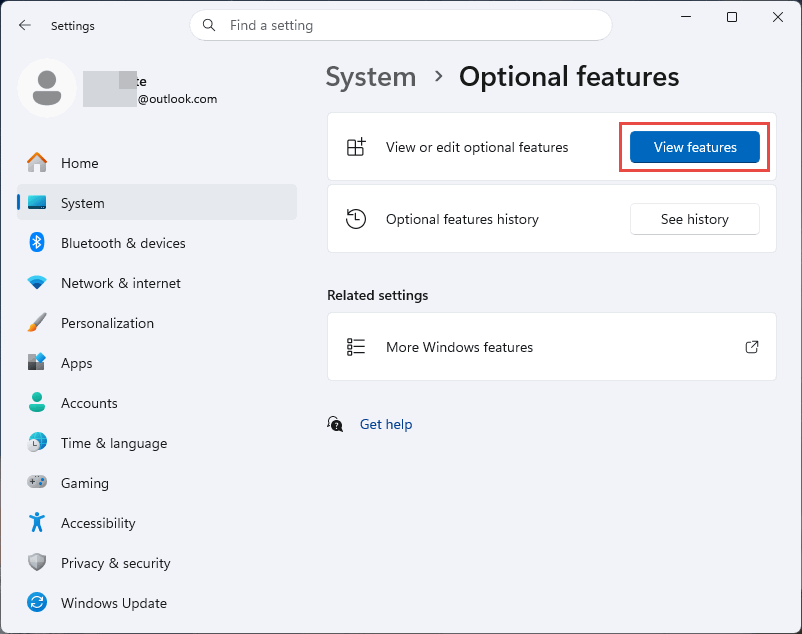
(2) View Features
After Entering the optional features interface, click the [View features] button.
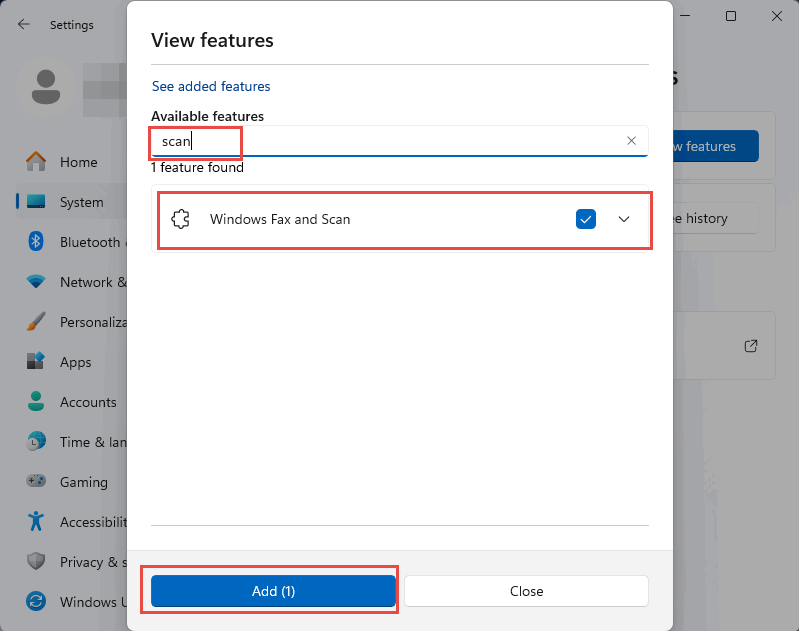
(3) Search and Install Windows Fax and Scan
In the pop-up [View Features] window, input keyword "scan" to find [Windows Fax and Scan] and check it, then click "Add" button. The system will automatically download and install the feature.
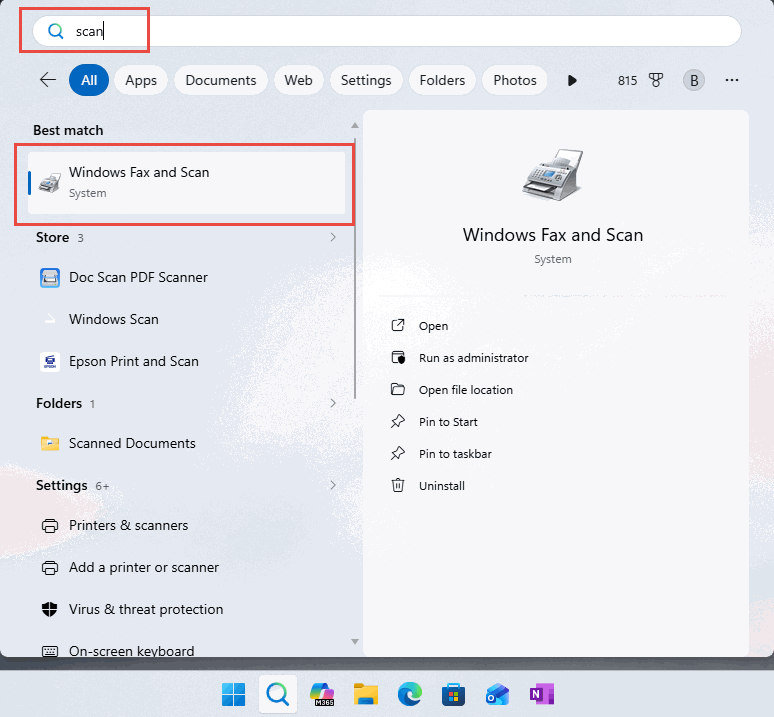
(4) Run Windows Fax and Scan
Using Windows Search feature, input "scan" keyword to find Windows Fax and Scan, then run it.