Open .one File in Mac: This file is from a different version of OneNote and we can’t use it
2026-03-19 17:52
Question:
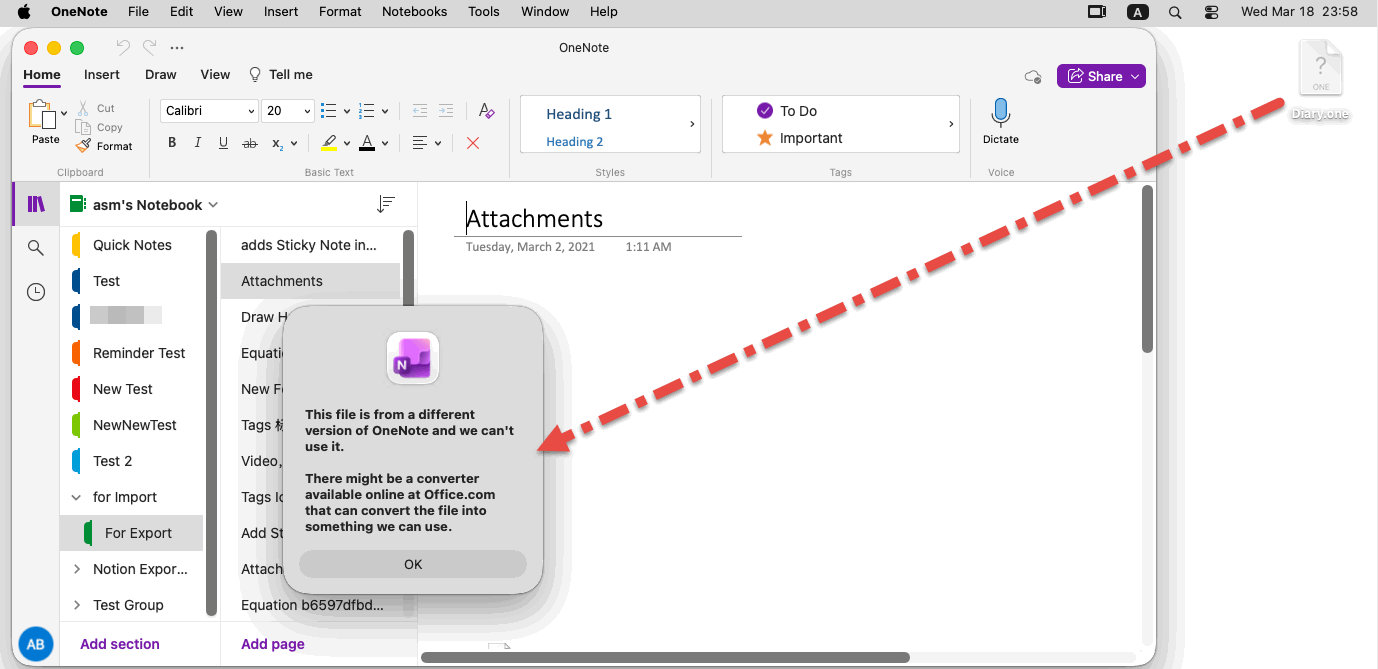
When I open a local section .one file with the "Open Section…" menu item provided by Mac OneNote, I get the following error message:This file is from a different version of OneNote and we can’t use it.
There might be a converter available online at Office.com that can convert the file into something we can use.
How to fix it?
Answer:
Mac OneNote has a new "Open Section…" menu item that only works on opening some .one files. There are .one files that it does not recognize.Solution:
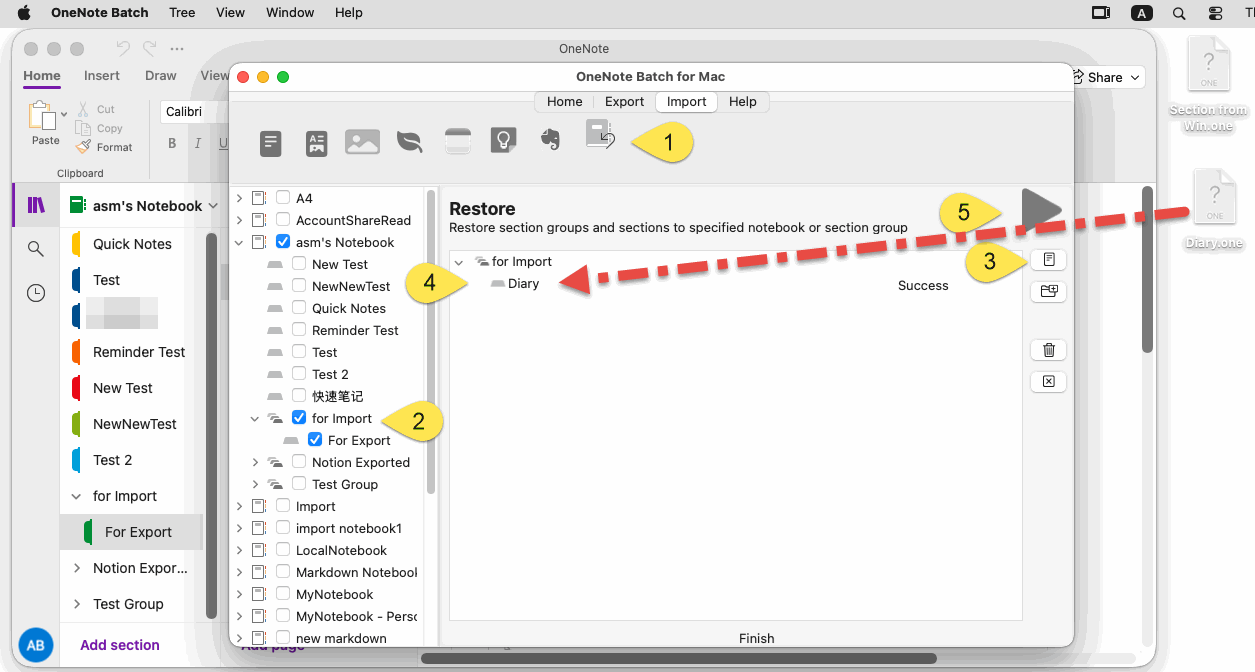
You can use the “Restore” feature provided by OneNote Batch for Mac to import .one files that are not recognized by OneNote on Mac.Use “Restore” of OneNote Batch for Mac
In OneNote Batch for Mac:- Click Import tab ->Restore feature
- In the notebook tree on the left, check a notebook or section group (for Import)
- Click the "Add File" button on the right to add a Diary.one file.
- The Diary section will be placed under the “for Import” section group.
- Finally, click the "Start" button to import Diary.one.
View Imported Section in Mac OneNote
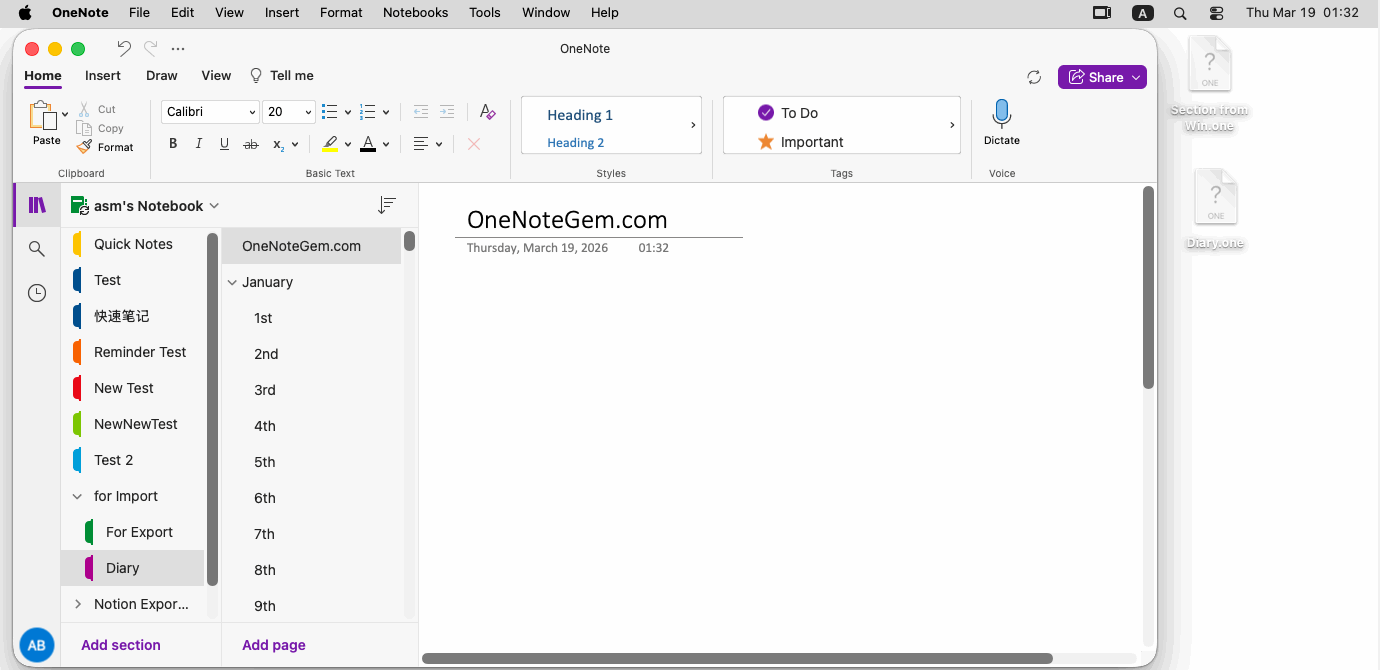
After Mac OneNote finishes syncing from OneDrive.com, you can see the Diary section appear under the “for Import” section group.This section can be edited and modified directly.
Related Documents
- How to import local .one files into a notebook of Mac OneNote as sections?
- Export Notion Pages to HTML Files and Import Them into Mac OneNote
- Export Evernote notes to HTML Files and Import Them into OneNote for Mac
- How to Bulk Import Evernote enex File into Mac OneNote in macOS?
- Mac: Bulk Import Photos into OneNote, One Page per Image

