Find and Download Sections that disappear due to moving or renaming in the OneNote client
2025-10-14 06:46
Moving or renaming a section by the OneNote client may result in the loss of the section. This has been a stubborn disease for many years.
Now, OneNote Batch Cloud, a batch processor for Windows, provides a feature to find these types of missing sections.
It maybe finds these missing sections.
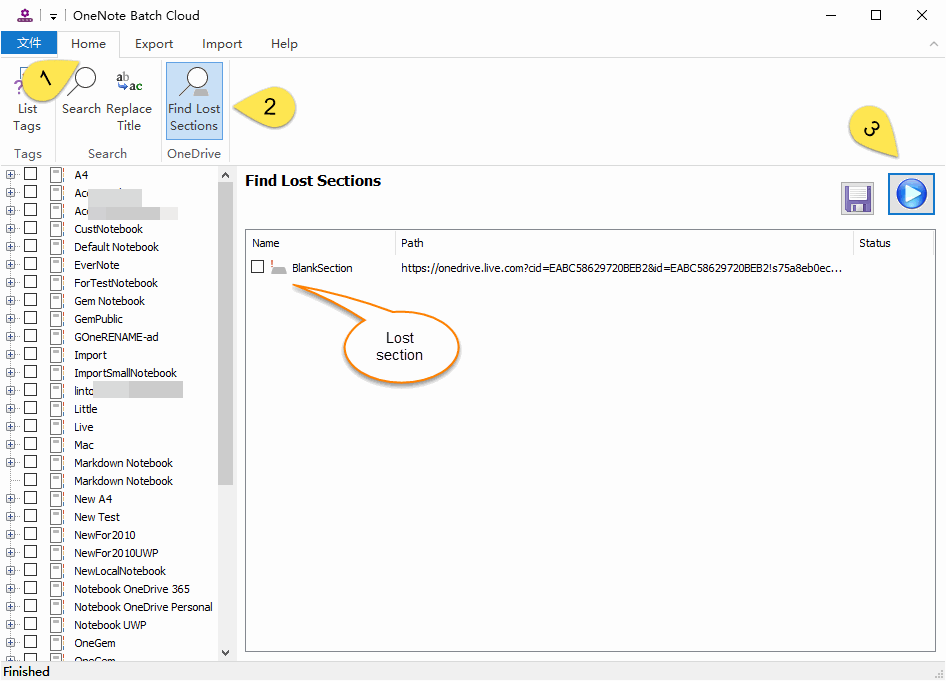
OneNote Batch Cloud will start search the lost sections and list them.
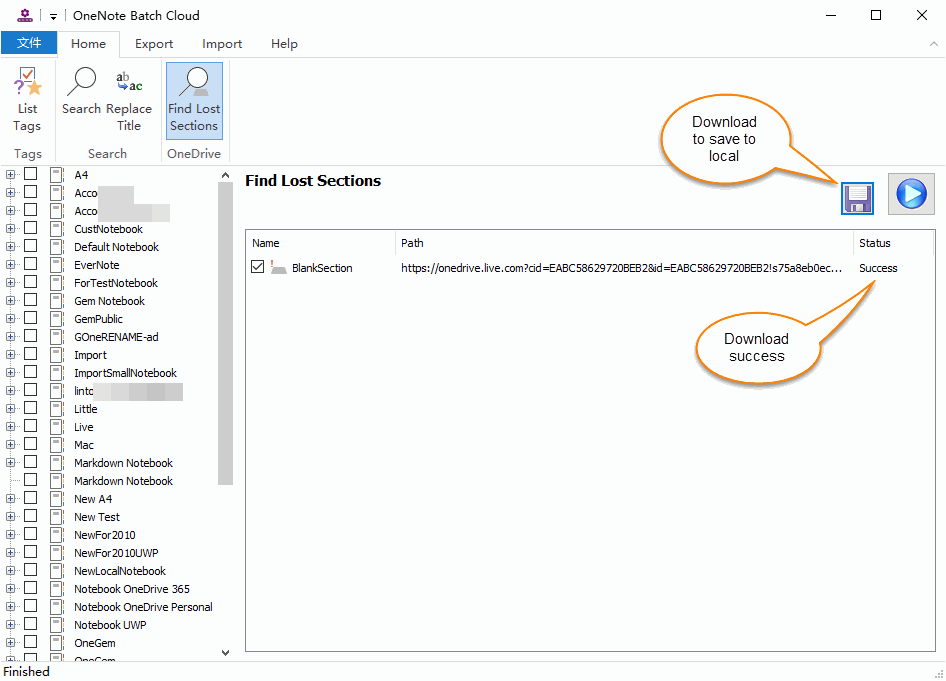
Then, click “Save” button, and choose the local folder, OneNote Batch Close will download the checked section files.
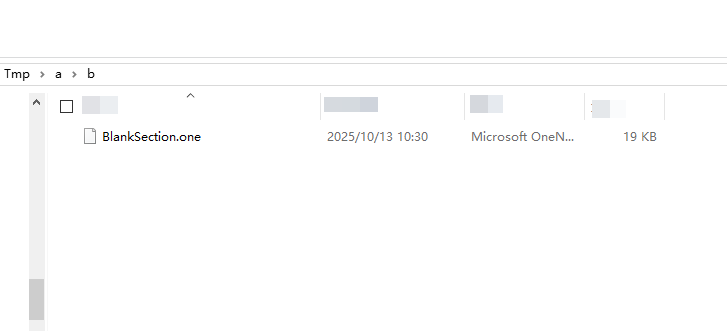
You can use Windows Office OneNote to open .one files so that you can restore the sections.
Now, OneNote Batch Cloud, a batch processor for Windows, provides a feature to find these types of missing sections.
It maybe finds these missing sections.
Find Lost Sections
In OneNote Batch Cloud, follow steps:- Click “Home” steps
- Click “Find Lost Sections” feature
- Then, click "Start“ button.
OneNote Batch Cloud will start search the lost sections and list them.
Download and Save Section Files
If it finds the missing sections, you can tick the boxes to choose which ones to download.Then, click “Save” button, and choose the local folder, OneNote Batch Close will download the checked section files.
View Downloaded Section Files
After downloading, we can view the downloaded .one section file through Windows File Explorer.You can use Windows Office OneNote to open .one files so that you can restore the sections.
Related Documents
- How to import local .one files into a OneNote notebook on OneDrive.com as sections?
- How to Backup Multiple Sections without Windows OneNote installed?
- How to Copy Multiple OneNote Sections and Section Groups to the Specified Notebook or Section Group at Once?
- View OneNote notebooks, section groups, sections sizes to prevent exceeding the 2GB size limit in OneDrive.com

