Search
OneNoteGem
  • Home
  • Addins
    • Windows Office Addins >
      • Gem for OneNote
      • OneNote Search Bar
      • OneNote Gem - Favorites
      • OneNote Batch
      • Pons for MindManager and OneNote
      • Mind Map for OneNote
      • Pons for Visio and OneNote
      • Row to OneNote
      • Auto OneNote
      • Favorite to OneNote
      • Bridge for EndNote and OneNote
      • Anchor to OneNote
      • Anchor to OneNote for PDF
      • Bring to OneNote
      • Gem Table for OneNote
    • Windows Cloud Addins >
      • CiteBoard for OneNote
      • OneReader
      • OneMind for Web OneNote
      • OneNote Reminder Cloud
      • OneNote Batch Cloud
    • Mac Addins >
      • Gem Menu for Mac OneNote
      • CiteBoard for OneNote
      • Bring to Mac OneNote
      • OneMind for Mac OneNote
      • OneNote Reminder for Mac
      • OneNote Batch for Mac
      • Fix One for Mac - Fix OneNote Login, Sync Tools
    • Android Addins >
      • CiteBoard for OneNote
      • Fix One for Android - Fix OneNote Login, Sync Tools
    • Cross-Platform Addins >
      • OneNote Reminder
      • OneMind for OneNote
      • CiteBoard for OneNote
      • Fix One - Fix OneNote Login, Sync Tools
    • Markdown Addins >
      • Gem for OneNote
      • One Markdown
    • Mind Map Addins >
      • OneNote Gem - Favorites
      • Pons for MindManager and OneNote
      • Mind Map for OneNote
      • Pons for Visio and OneNote
      • OneMind for OneNote
    • Other Addins >
      • Gem Menu for OneNote UWP
      • One Markdown
      • Clip to OneNote
      • WordNote
      • OneShare
      • Fix One for Windows - Fix OneNote Login, Sync Tools
      • OneNote for Windows 10 Reviver - UWP Reviver
  • Buy
  • Documents
  • FAQs
  • Templates
  • Support
  • Release
  • WordNote
Mind Map for OneNote
 
 
Using OneNote native elements to create Mind Map

How to Insert PDF as Printouts into Android OneNote, Read and Take Notes on Them

2026-10-01 07:24
 
Many people want to import PDF into OneNote for Android, but don't know how to do it.

Steps:

 
1.Open the target note page in OneNote for Android where you want to import the PDF, and tap the [➕] icon at the bottom of the screen.

Open the target note page in OneNote for Android where you want to import the PDF, and tap the [➕] icon at the bottom of the screen.

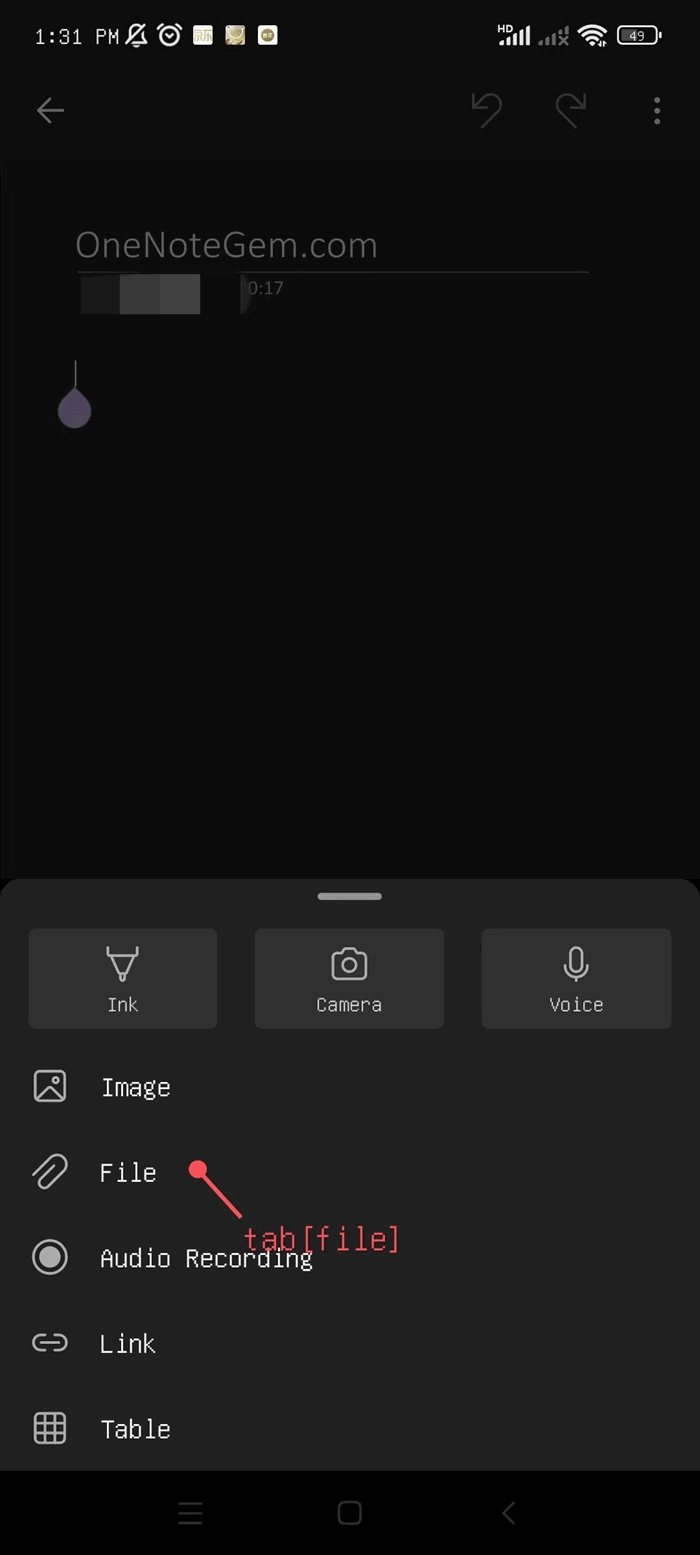
2.Then tap the [File] function.

Add -> File


3. Find the PDF file you want to import and tap it.
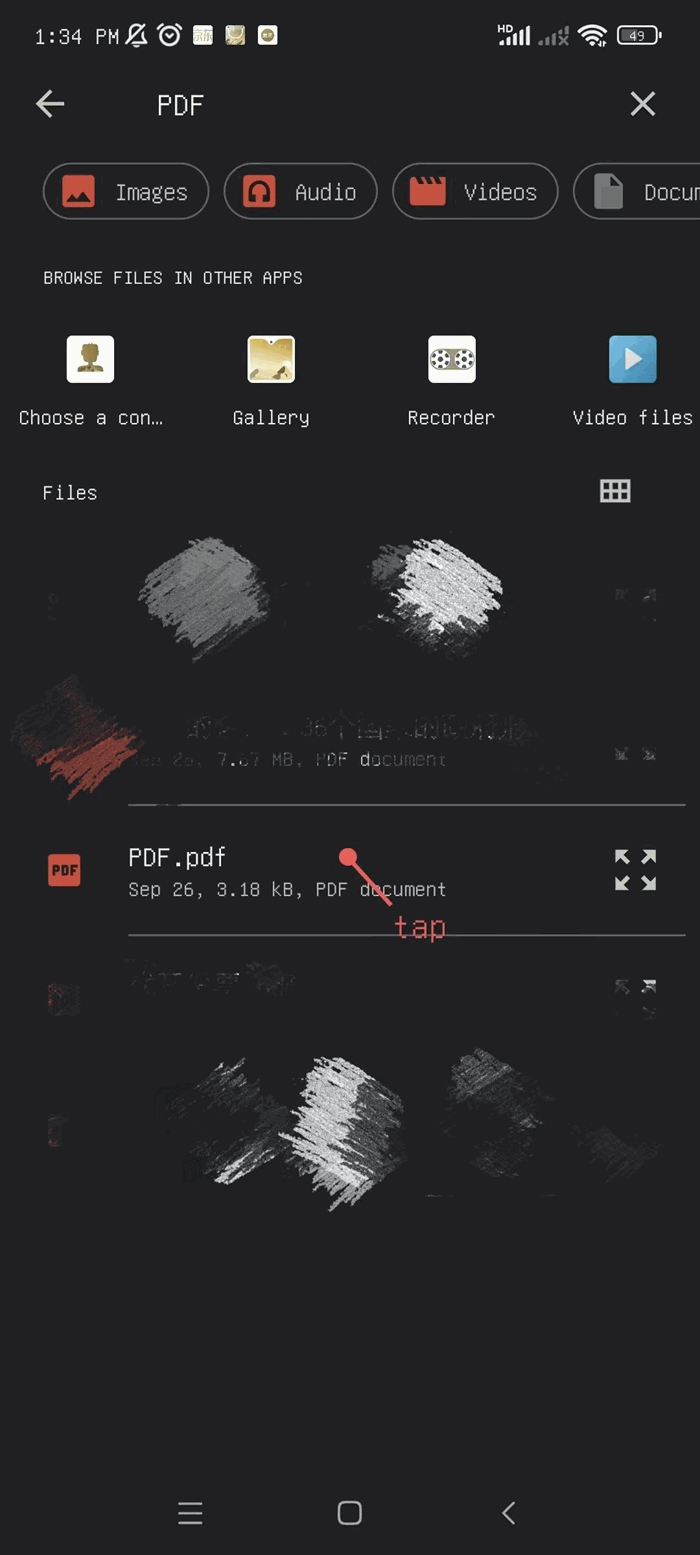
Choose a PDF file


4.Then OneNote will pop up "Insert file As", with 2 options:
 
  • Attachment — this option inserts the PDF file as an attachment into the OneNote page.
  • Printout — this option converts the PDF file into "Printouts" and inserts them into the OneNote page.
 
 
In this example, we choose "Printout".
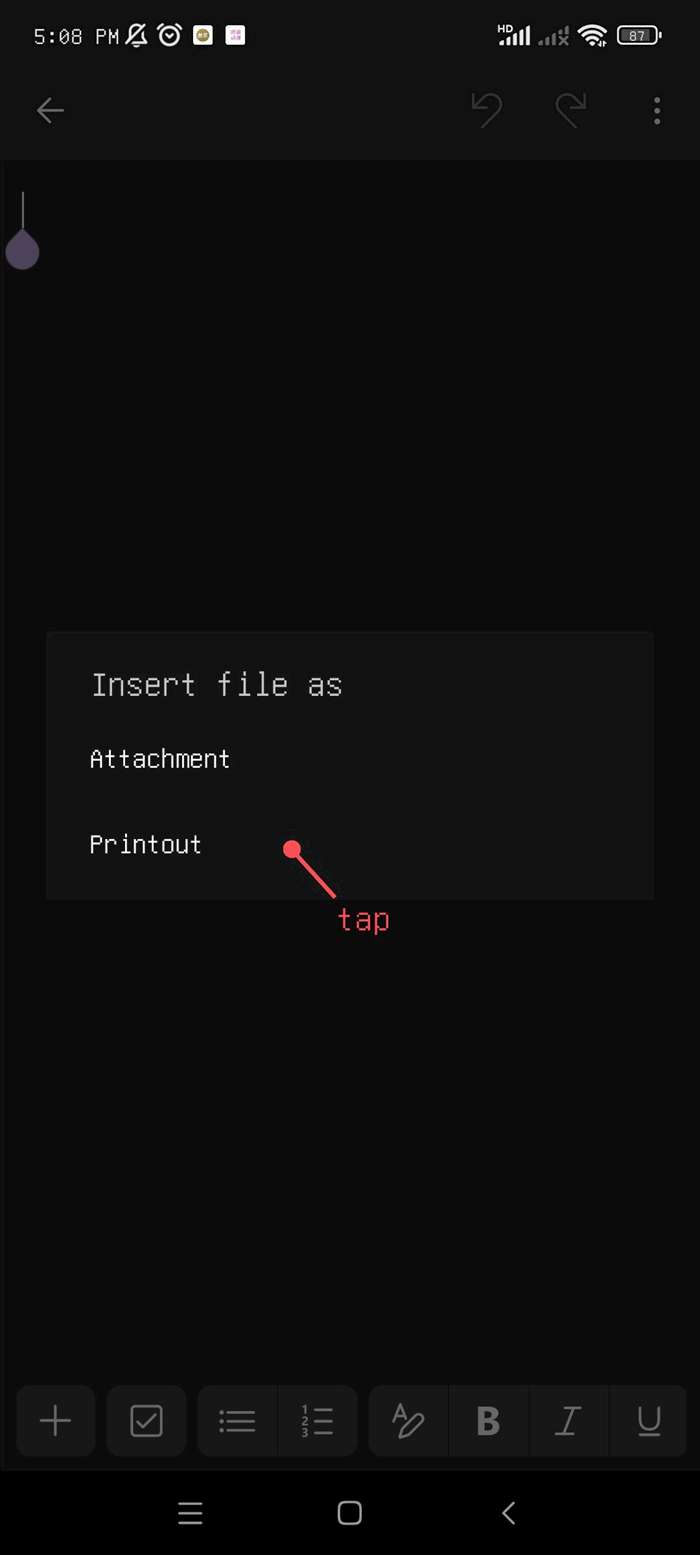
Insert file As

5.Below is an example of the PDF you inserted turned into  "Printouts".
Printouts are something like images.
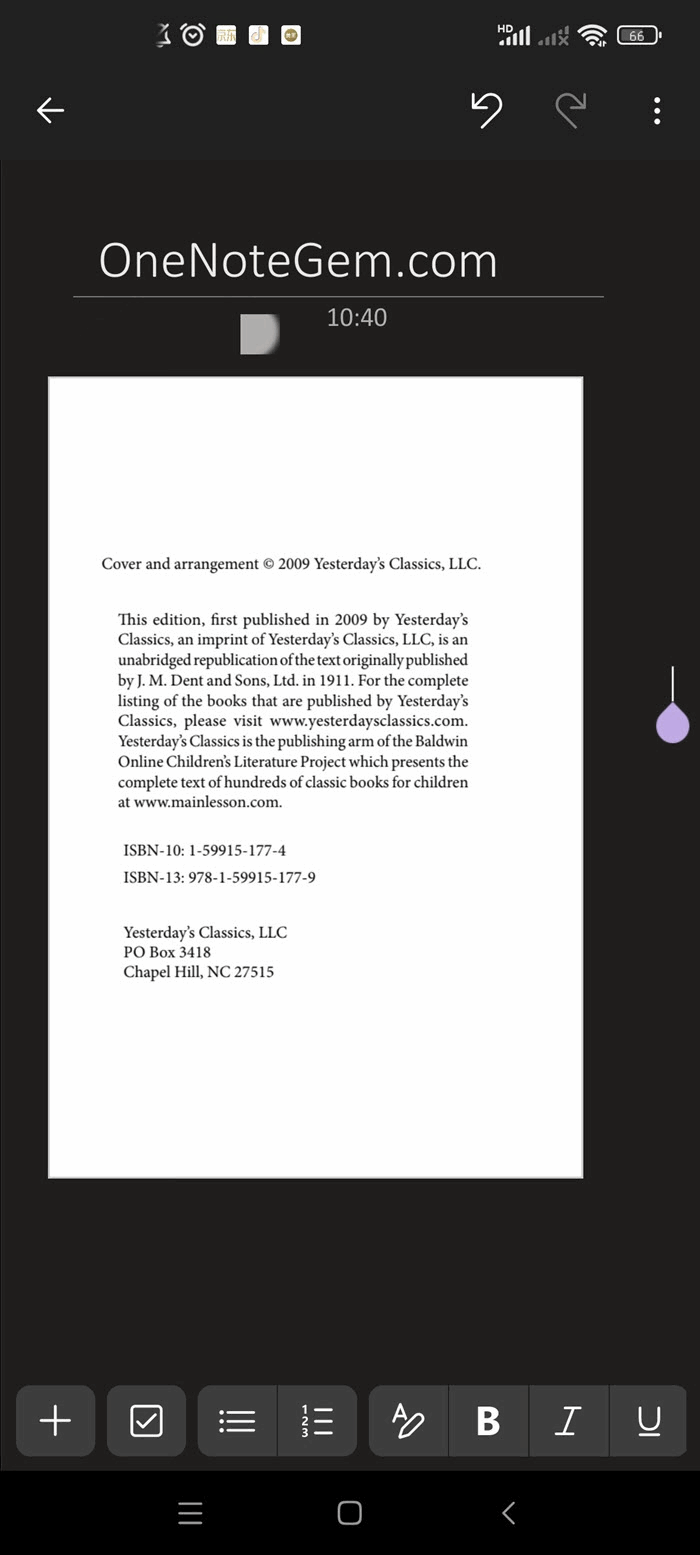
Printouts


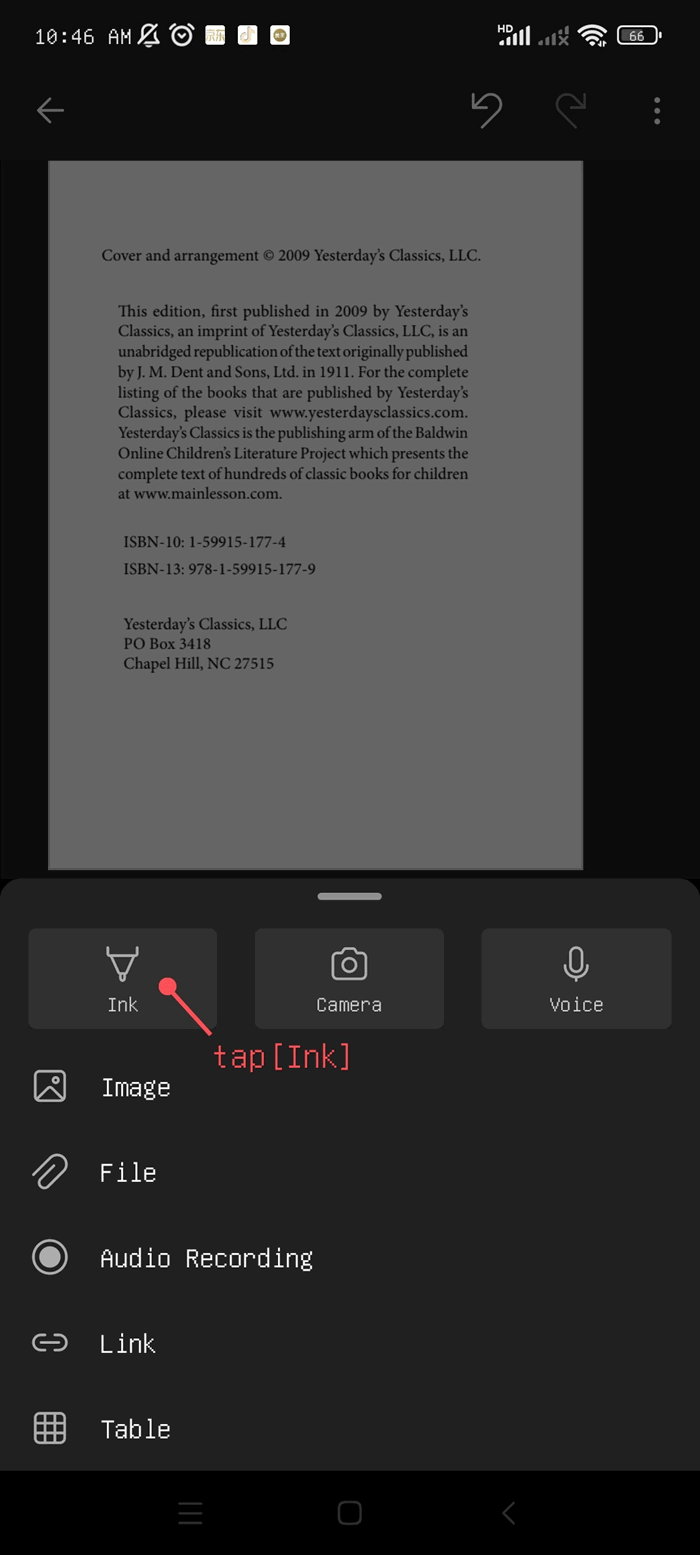
6. Next, you can directly handwriting and highlight key points on the PDF printouts.
 Tap the add [➕] icon on the bottom toolbar.
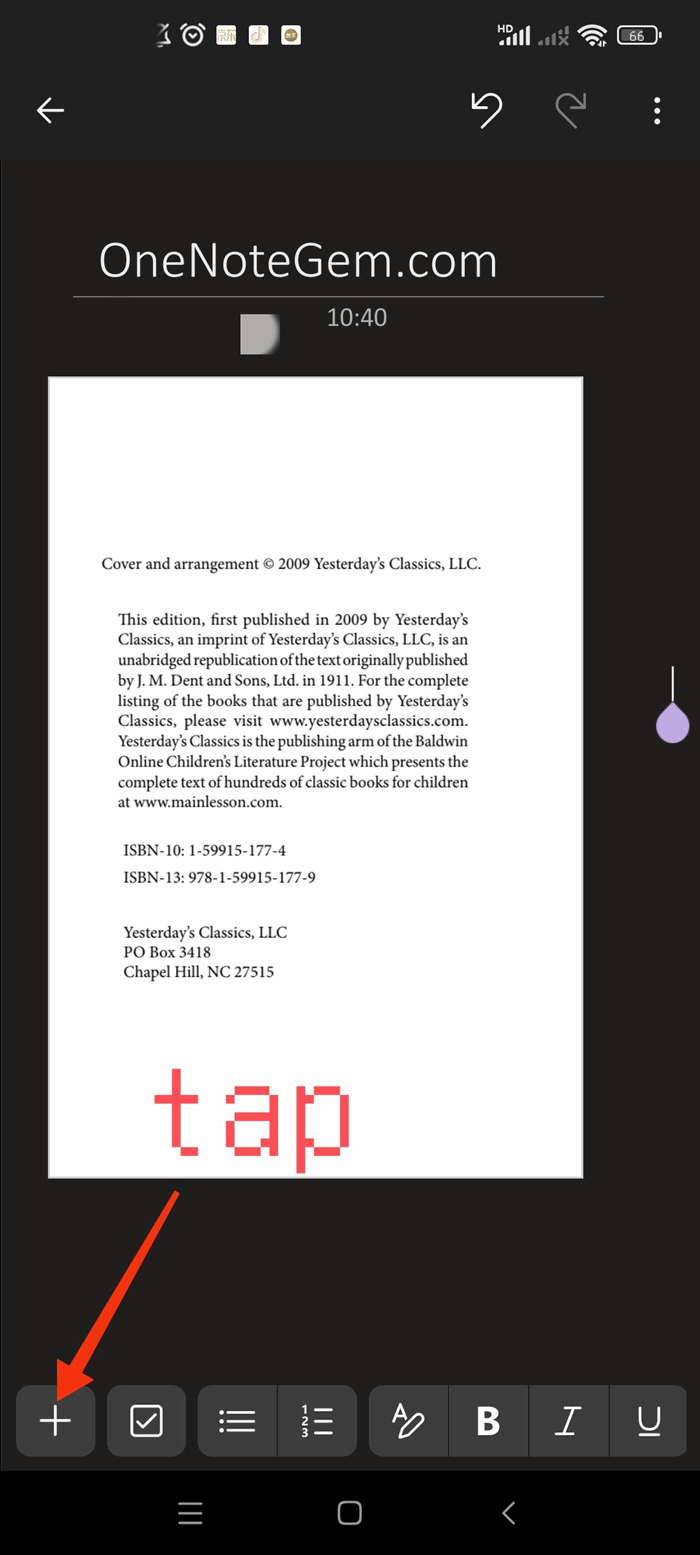
ready for ink

7.In the pop-up menu, tap [Ink].


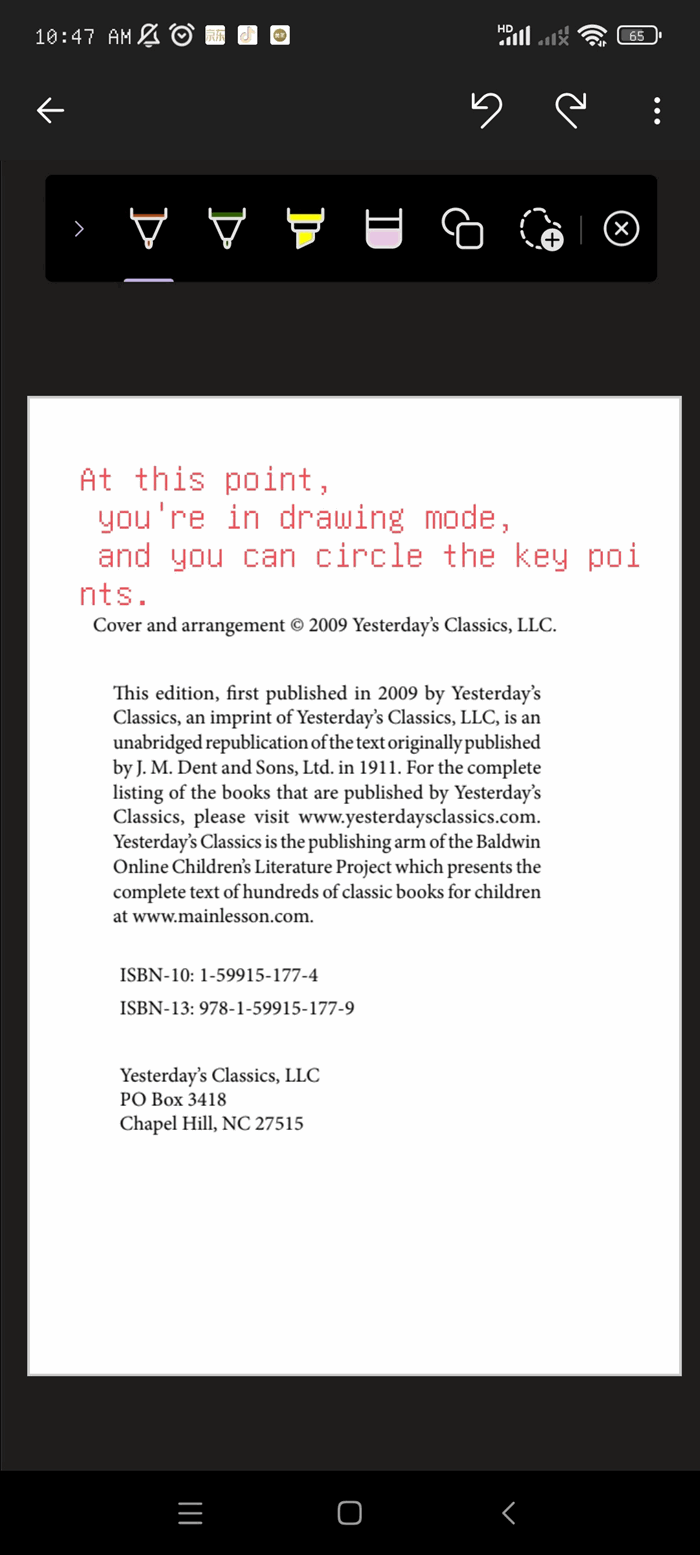
8.This will enter the drawing interface. On the PDF "Printout", you can:
  • Type text or insert images with the keyboard to take notes.
  • Choose different colored pens for handwritten annotations.
  • Use "Shapes" (square, circle, trapezoid, etc.) to circle and highlight.
Draw mode

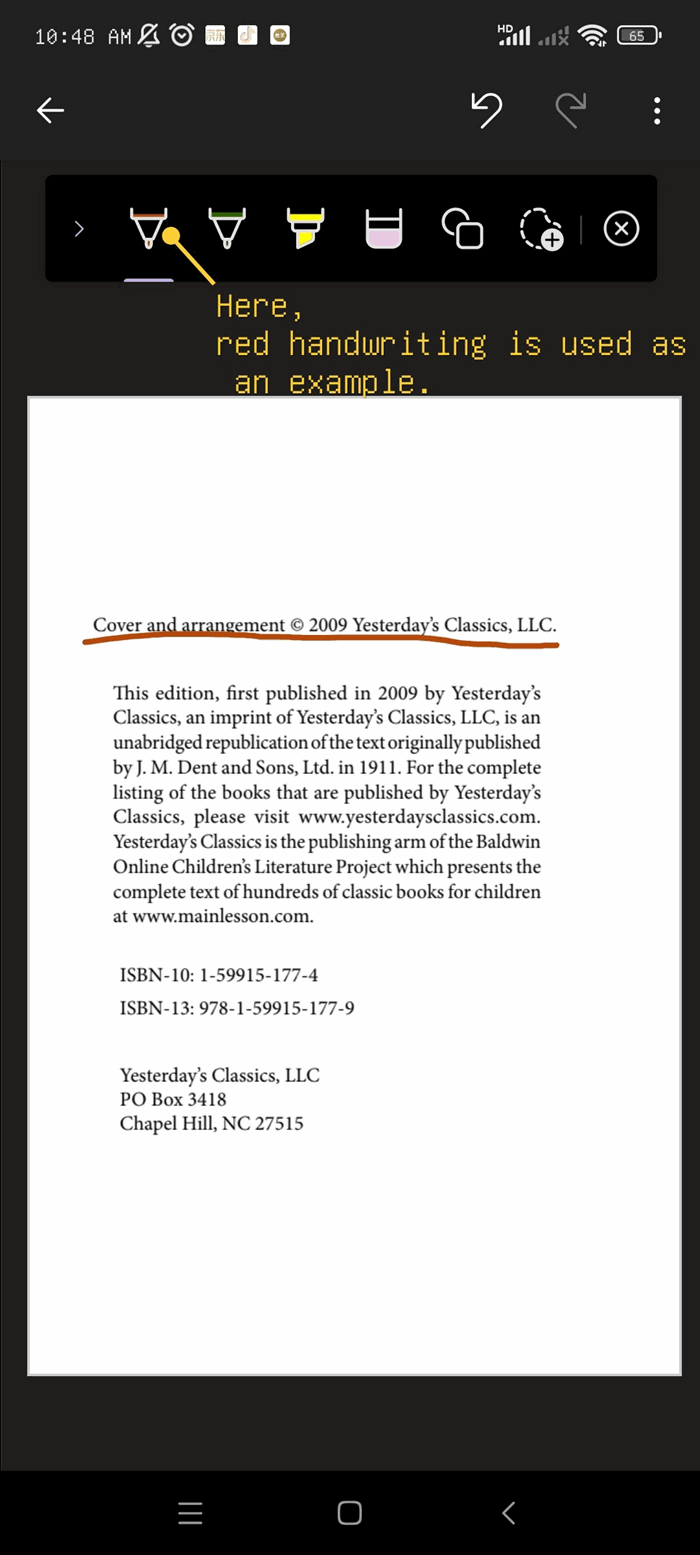
9.The image below shows an example of drawing key points with red ink.
 
drawing on printout


Related Documents

Command Line
Tag System
MindMap Add-Ins Comparison
Search Add-Ins Comparison
One Markdown Syntax
Table Formula
Gantt

Gem Menu Templates
Repair OneNote
OneNote Download
English website Chinese website
Mobile Site
Copyright © 2011-2026 Digital GemSoft. OneNoteGem.com All Rights Reserved.