Search
OneNoteGem
  • Home
  • Addins
    • Windows Office Addins >
      • Gem for OneNote
      • OneNote Search Bar
      • OneNote Gem - Favorites
      • OneNote Batch
      • Pons for MindManager and OneNote
      • Mind Map for OneNote
      • Pons for Visio and OneNote
      • Row to OneNote
      • Auto OneNote
      • Favorite to OneNote
      • Bridge for EndNote and OneNote
      • Anchor to OneNote
      • Anchor to OneNote for PDF
      • Bring to OneNote
      • Gem Table for OneNote
    • Windows Cloud Addins >
      • CiteBoard for OneNote
      • OneReader
      • OneMind for Web OneNote
      • OneNote Reminder Cloud
      • OneNote Batch Cloud
    • Mac Addins >
      • Gem Menu for Mac OneNote
      • CiteBoard for OneNote
      • Bring to Mac OneNote
      • OneMind for Mac OneNote
      • OneNote Reminder for Mac
      • OneNote Batch for Mac
      • Fix One for Mac - Fix OneNote Login, Sync Tools
    • Android Addins >
      • CiteBoard for OneNote
      • Fix One for Android - Fix OneNote Login, Sync Tools
    • Cross-Platform Addins >
      • OneNote Reminder
      • OneMind for OneNote
      • CiteBoard for OneNote
      • Fix One - Fix OneNote Login, Sync Tools
    • Markdown Addins >
      • Gem for OneNote
      • One Markdown
    • Mind Map Addins >
      • OneNote Gem - Favorites
      • Pons for MindManager and OneNote
      • Mind Map for OneNote
      • Pons for Visio and OneNote
      • OneMind for OneNote
    • Other Addins >
      • Gem Menu for OneNote UWP
      • One Markdown
      • Clip to OneNote
      • WordNote
      • OneShare
      • Fix One for Windows - Fix OneNote Login, Sync Tools
  • Buy
  • Documents
  • FAQs
  • Templates
  • Support
  • Release
  • WordNote
Mind Map for OneNote
 
 
Using OneNote native elements to create Mind Map

How to Export Sticky Notes from OneNote as .txt Files?

2026-04-02 06:17
 

Find the Microsoft Account for Sticky Notes in OneNote and Sign in to the Account in Outlook

  1. Click the "Feed" or "Sticky Notes" icon button in the top left corner of OneNote.
  2. Find the Microsoft account for the Sticky Note
    At the top of the Feed or Sticky Notes pane, you can see Microsoft accounts, such as: ???? @outlook.com
  3. Sign in to this Microsoft account ???? @outlook.com in Outlook
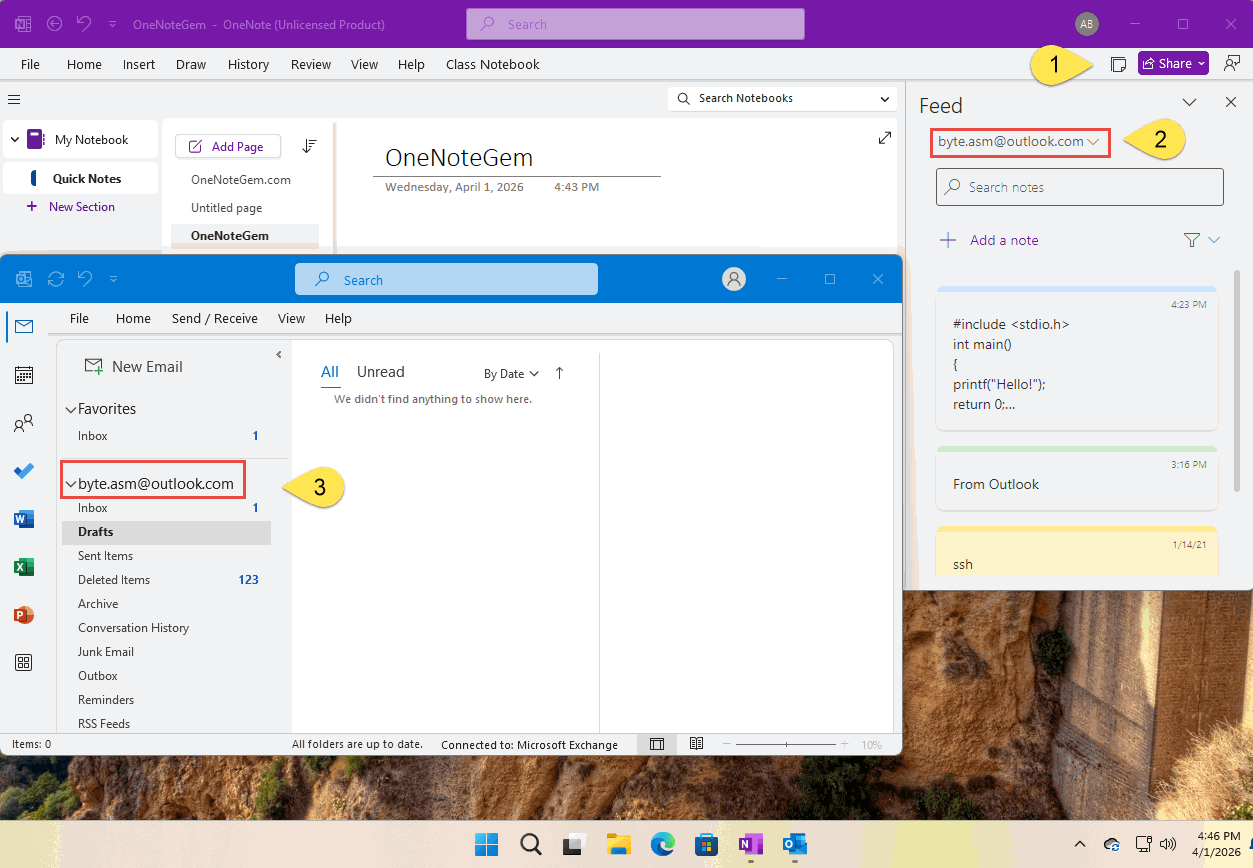
Find the Microsoft Account for Sticky Notes in OneNote and Sign in to the Account in Outlook


Specify Where the Sticky Notes are Stored in OneNote Batch

Run OneNote Batch:
  1. Click “Export” tab
  2. Click “Sticky Notes” feature
  3. Click “Store” button
  4. In the "Choose a Sticky Notes Store" window that pops up, select “Notes - ???? @outlook.com”
  5. After clicking OK, the Sticky Notes Store box is specified as: \\???? @outlook.com\Notes
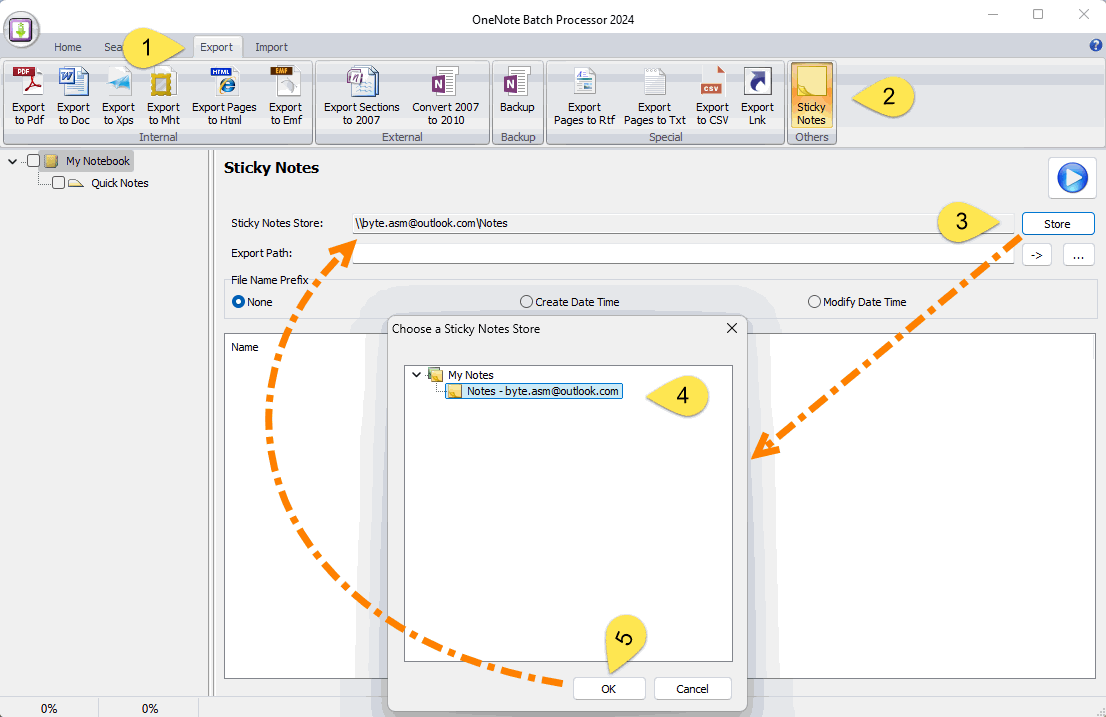
 
Specify Where the Sticky Notes are Stored in OneNote Batch

Export Sticky Notes as .txt Files

6. Select a Windows folder for the exported .txt text file.
7. If you want to save the creation time of the note, you can choose to use the “Creation Date Time” of the note as the prefix of the file name when creating the .txt file.
8. Finally, click the "Start" button to start exporting the stick notes
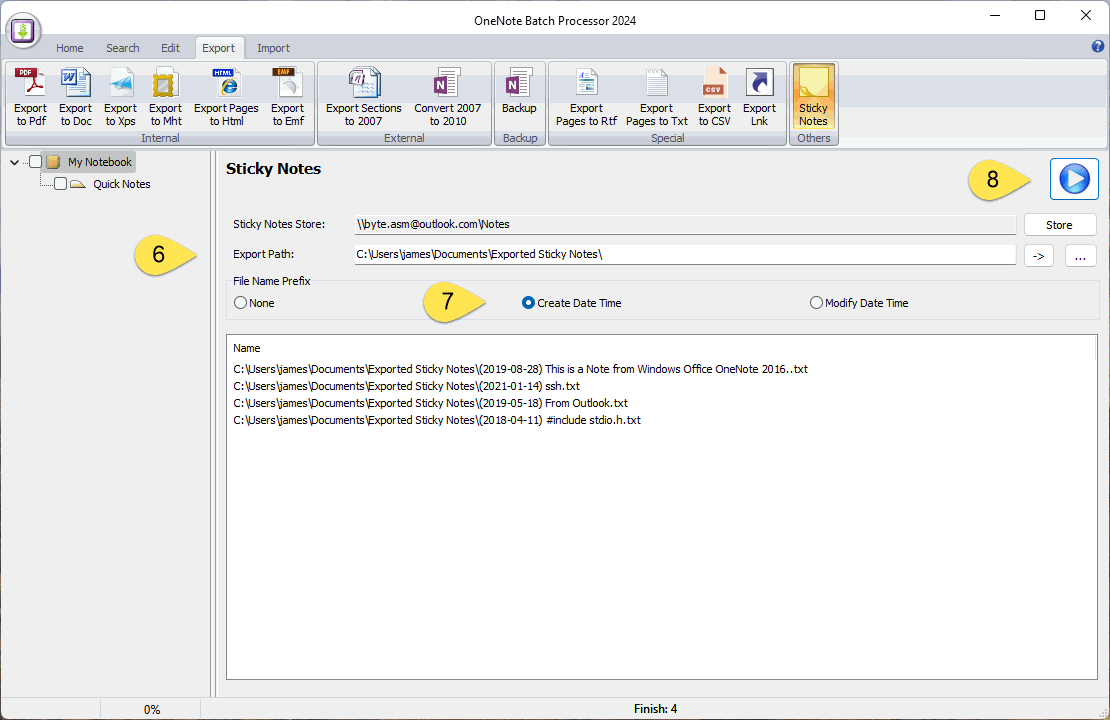

Export Sticky Notes as .txt Files

View the Exported .txt File

In Windows Explorer, open the folder where the .txt files are stored.
Here you can see the exported file.
where the ( ) part of the file begins is when the sticky note was created.
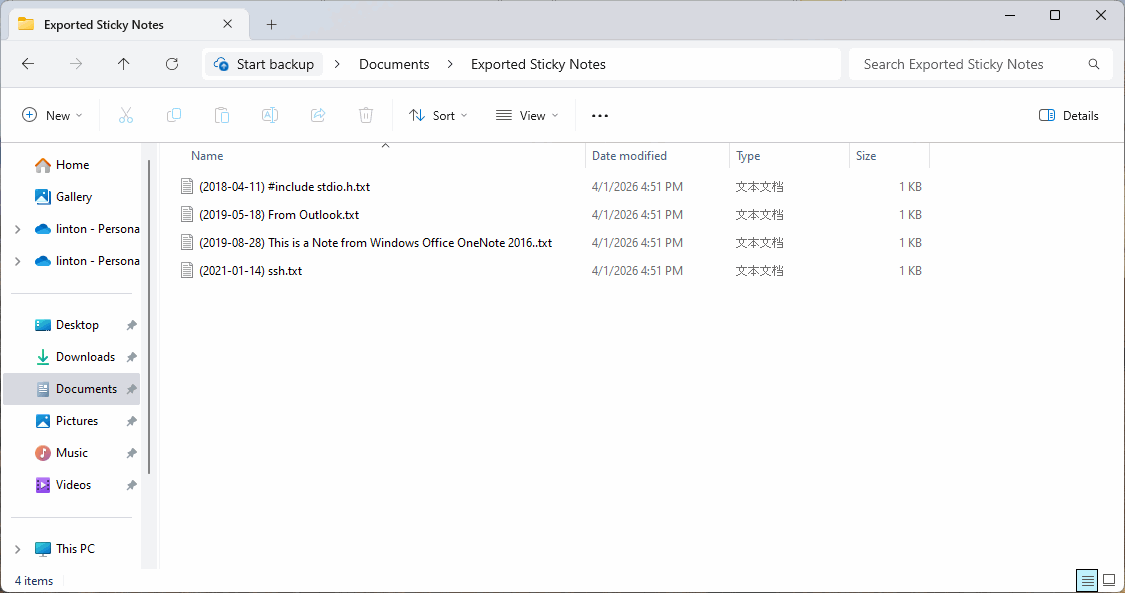

View the Exported .txt File


Download OneNote Batch

Related Documents

  • How to Export OneNote Pages to a CSV File?
  • How to Bulk Export Multiple Specified OneNote Sections into Multiple PDF Files?
  • EXE: Export all OneNote Notebooks to WordNote
  • Export OneNote Pages to HTML Files, and Convert onenote: Links Between Paragraphs to HTML File Bookmark Links.
  • OneNote export pages as image files
Command Line
Tag System
MindMap Add-Ins Comparison
Search Add-Ins Comparison
One Markdown Syntax
Table Formula
Gantt

Gem Menu Templates
Repair OneNote
OneNote Download
English website Chinese website
Mobile Site
Copyright © 2011-2026 Digital GemSoft. OneNoteGem.com All Rights Reserved.